
Introduction
Hello , My friend Today I’m here for you with a eaisest way to generate AI Videos in Buil for free. This is not a Magic but it is a proper method with a verified tool of meta company.
Requirements
- First we need an account of Meta AI
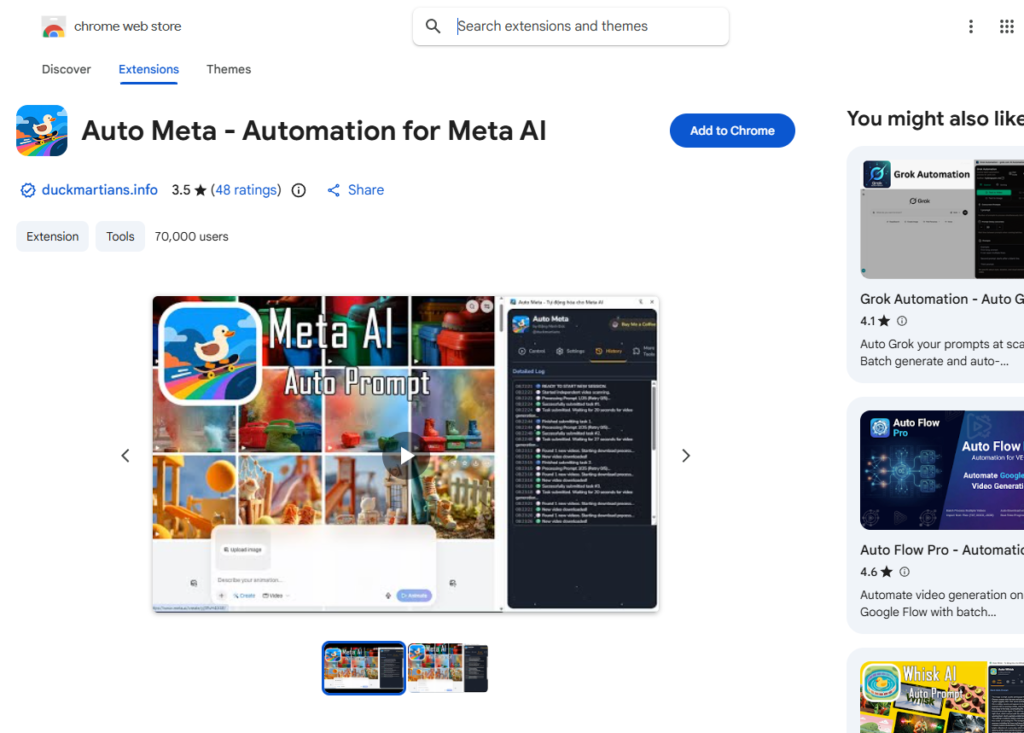
- Then an Extension called Auto meta
Let’s Get Started
Sit comfortably with one click and all your videos, not images, videos will start getting created directly in bulk for free, unlimited, without any watermark, whether you are making them for short videos i.e. in 9/16 ratio or for long videos i.e. in 16/9 ratio, you can create all the videos in bulk, just after pasting the prompts once and clicking on start, as if you see on the screen here, a lot of my video clips are getting prepared, a niche is being created which is a factory niche, in which how things are made in the factory, what is their process, is shown and people watch it with great interest and you can also take out videos of hours for free from here, you just have to add voice over and in this way, with one click, you have to prepare all these videos, add them and upload them and yes, whether such videos will get monetized or not, how they will get monetized, 100%, I have explained it later in the video itself, so watch the video completely, Insha Allah, it will be very beneficial. So how do you make bulk videos in one click? For this, you’ll need two things: Meta AI, which is completely free and costs nothing. The other is Automata, which is also completely free and costs nothing. So, first, Meta AI. You all know how to log in, etc. You can do it through Facebook or email. Come to Meta AI. Here, you know that we go to Create and submit our print. Our image is created. We animate it, and our video is created. This is an old process. But if we want to convert it in bulk, we’ll need an extension. It’s called Automata. We’ll search for Automata on Google. Click on the first link that appears. From here, we’ll select Add Extension to Chrome. See, this extension will appear in our Chrome like this. You have to add it. An error will appear here. It will say “Go to Meta.” If you click on it, you’ll go directly to Meta. You’ll see all its settings here. We’ll see how to use it later. First, let’s go to ChatGBT and create props there. For the videos we want to make in bulk, for which we want to create scenes. So, here I’ll explain my video to ChatGBT. Like, I’m writing here, “I want to make a car factory video in which I’ll show how cars are made A to G.” I’ll make this video using AI. So, give me scenes. Okay, I wrote this much prop, and I got various scenes here. It’s created about 23 scenes. These are scenes, not props. Okay, now we’ll create props. Within the scenes, it explains what will happen first and what will happen later. We can read them. If you want to add any scenes, you can add them yourself. You can also explain further, etc. After that, we’ll take the prop. Okay, now I’ll say, “Give me detailed.” Props for each scene without adding extra text. The extra text Chat GBT adds on its own, which includes titles, etc., we don’t need that. I’ve written here ‘without adding extra text’ and then I’ll write ‘give five prompts in the first chat’, meaning I need five prompts in the first chat. Now, what’s the purpose of getting five prompts? If I ask Chat GBT for all the prompts at once, Chat GBT will give me one or two line prompts each, and they won’t be detailed. So, I’ve asked for five prompts just so that it can give you five detailed prompts in five prompts, or give you big prompts. After this, if you want more prompts, you just have to write ‘next five’ here. You’ll get the next five prompts. Similarly, you’ll get the prompts for all your scenes in the same way. Okay, and now what do you have to do? Now, come back to Automata. Meta will automatically turn on its settings here. Etc. It’s simple, there’s no rocket science involved. You just need to add a list of your prompts here. How do you add them? Go to Chat GBD, pick your prompts, like I’m picking prompts five at a time. And coming here, I’m pressing enter. I’m adding the next prompts, all of them at once. Enter means that by pressing enter, our cursor comes to the line below. If you write all the prompts in a single paragraph, it will be considered as one prompt. So, you have to treat each prompt as a separate paragraph, that is, you have to leave a line in between each prompt. Like, there’s already a line left here. You can add all the prompts here. There are about 25 prompts. After that, we’ll start from here. Our video clips will start getting created. See, the video clips have already started getting created. In a short while, all our video clips will be created and will also be downloaded automatically. The download folder It happens. It will go directly to your PC or laptop, it will get downloaded automatically and will go there itself. See how beautiful video clips have been made, somewhere the engine is being made, somewhere sparks are rising, welding is being done, cutting is being done, colours are being applied.
Gemini
Final Greeting
I hope this article helps you to generate Free AI Videos and If this helps you please show your experience in comment section below.